About this Viral Editing Resource
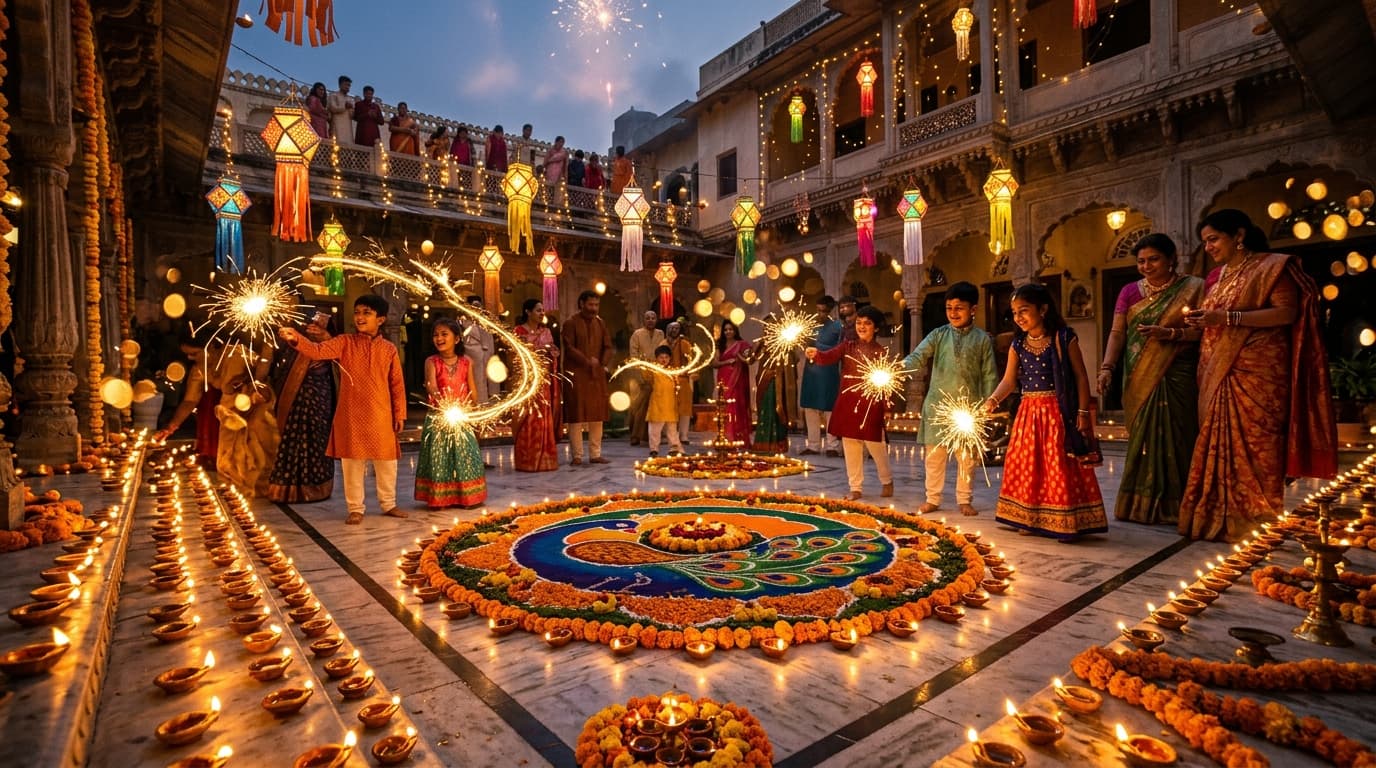
Give your festive night photos enchanting warmth with controlled firecracker highlights, rich velvety shadows, luminous golden diya light, and enhanced silk fabrics.
In recent social media trends across Instagram Reels, TikTok, and YouTube Shorts, creators using this exact style have experienced massive reach and algorithmic engagement. Below you will find the complete workflow, one-click prompts, and free downloadable assets.
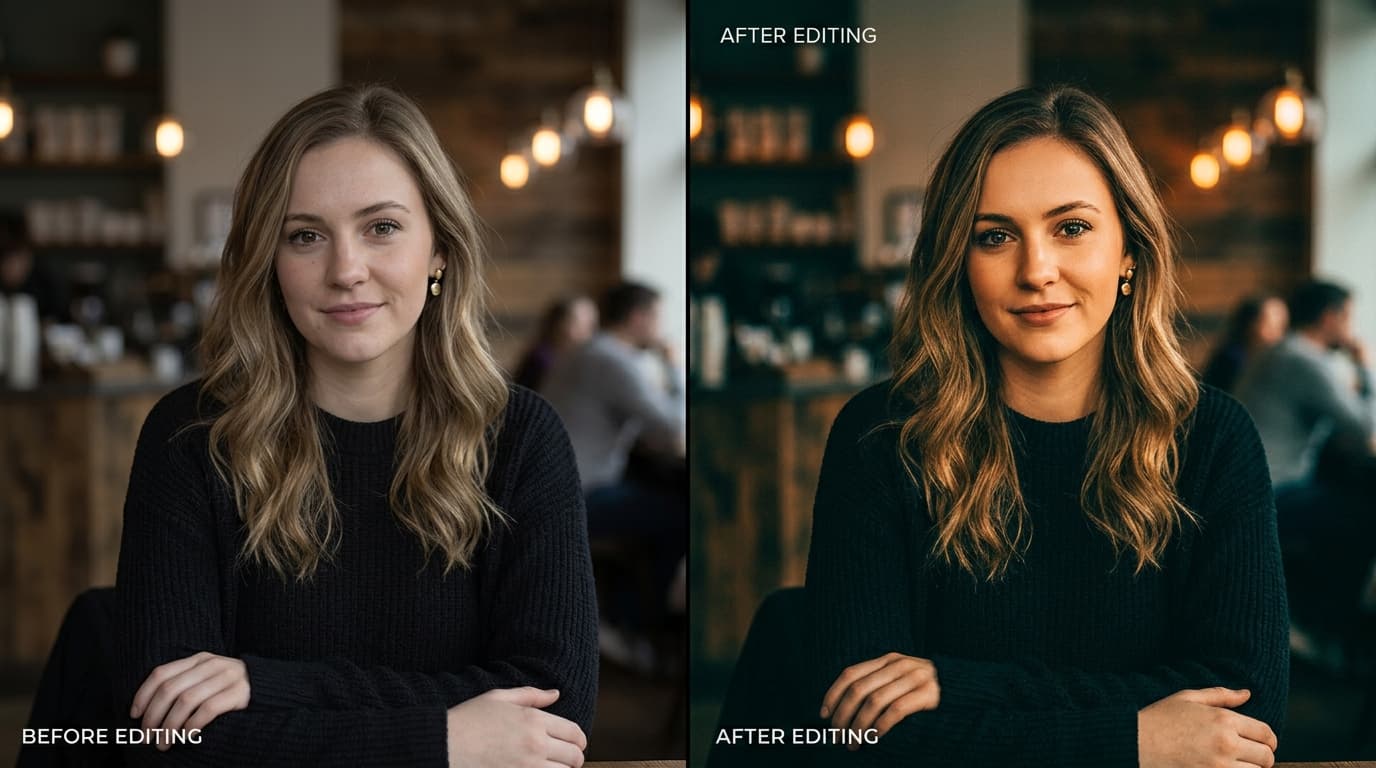
Before vs After Color Grading Preset
Step-by-Step Tutorial Workflow
Step 1: Download the Free DNG File
Tap the download button below. Save the DNG file directly into your mobile Files or Gallery.
Step 2: Import into Lightroom Mobile
Open Lightroom, tap 'Add Photos', and select the downloaded DNG image.
Step 3: Copy and Paste Settings
Tap the 3 dots in the top right corner, select 'Copy Settings', then open your own Diwali photo and tap 'Paste Settings'.
Step 4: Minor Exposure Adjustment
If your portrait was taken in very dim lighting, boost Exposure by +0.20 to +0.40 for ideal illumination.
LuminaEdit VIP Alerts
⚡ 48K+ Active EditorsInstant VN & AI Prompts
🔥 65K+ CreatorsFrequently Asked Questions
Common questions about this editing prompt and workflow.
Yes! The .DNG format works 100% on the free Adobe Lightroom Mobile app on both iPhone and Android.